Staff and access
Add permanent staff, agency/bank staff, PIN access, role permissions and NFC identifiers.
 SecureObs
SecureObs training
A practical guide for managers and senior staff configuring SecureObs, adding permanent or agency staff, setting ward modules, monitoring sync and keeping the service audit-ready.
Add permanent staff, agency/bank staff, PIN access, role permissions and NFC identifiers.
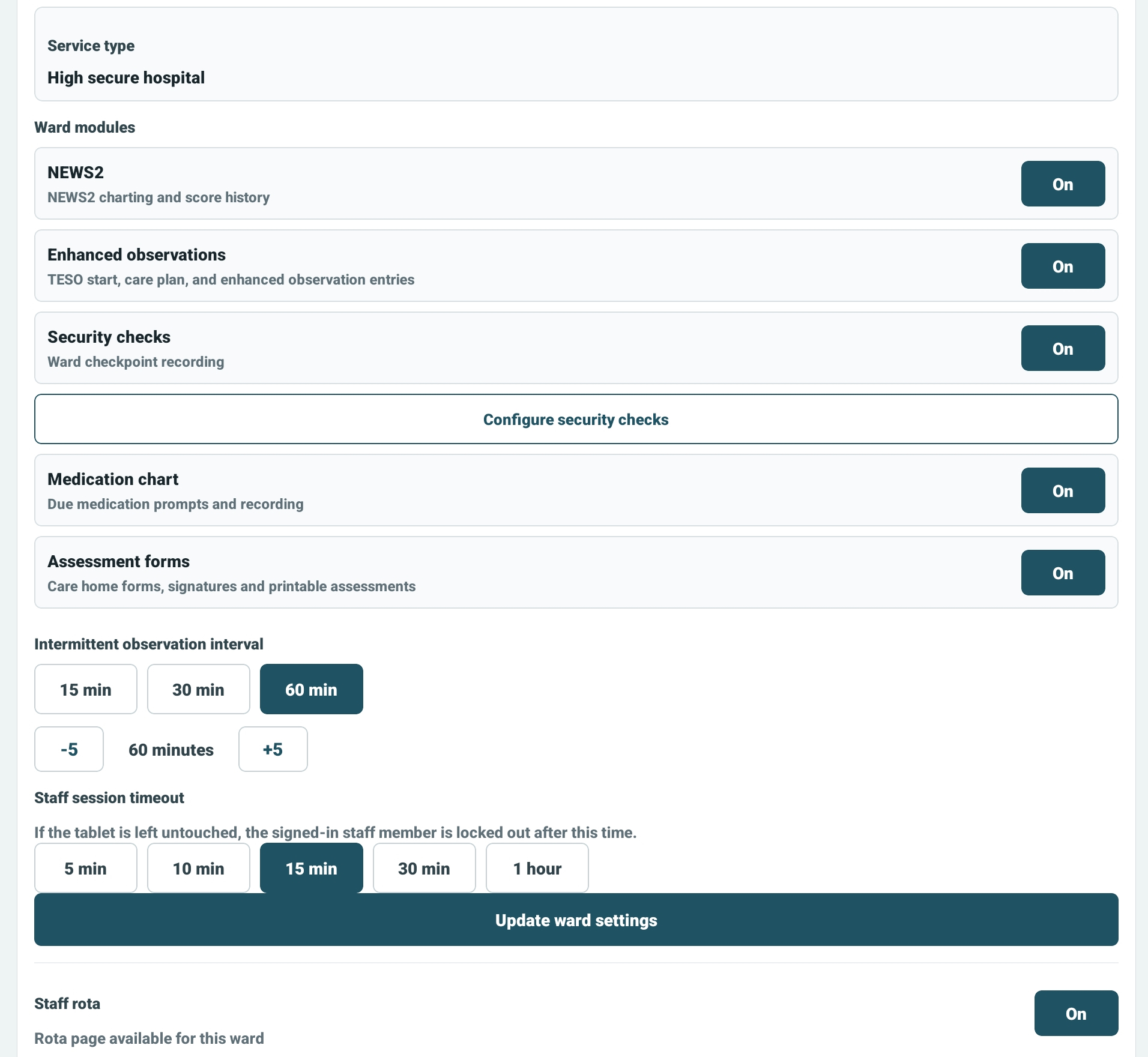
Control which modules are available on each ward, including NEWS2, medication, TESO and security checks.
Review sync status, session timeout, audit-sensitive settings and feature visibility across the service.
Use NFC or STAFFCODE/PIN and confirm the correct site and ward before making any setup changes.
Review the ward identity, observation interval, session timeout and enabled feature modules.
Set role, ward access, prescribing permission if appropriate, active status and NFC tag details.
Assign nurse in charge, medication nurse and enhanced observation cover so the ward knows who owns each task.
Check any queued uploads, review unresolved incidents and make sure staff understand the local escalation route.
SecureObs can be made as focused or as fully featured as the site needs. If a feature is off, staff should understand that it has been disabled for that ward, not that the app is broken.
Use the Word manual for induction packs, local training or staff sign-off.